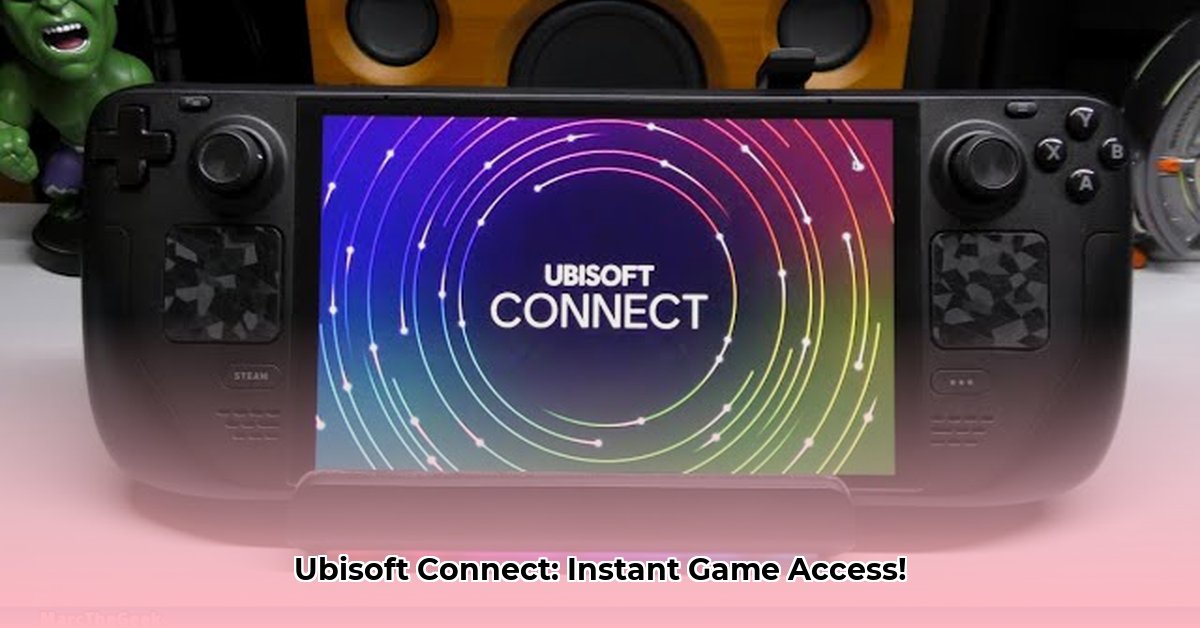
Ready to dive into the world of Ubisoft games? This guide will walk you through installing Ubisoft Connect, ensuring a smooth and easy experience. We'll cover everything from system requirements to troubleshooting common issues, making it simple even for beginners.
System Requirements: Is Your PC Game-Ready?
Before you begin, let's ensure your computer meets the minimum requirements for Ubisoft Connect. This quick check prevents potential installation problems later.
| Component | Minimum Requirement | Recommended Requirement |
|---|---|---|
| Operating System | Windows 7 SP1, Windows 8.1, Windows 10, or Windows 11 | Windows 10 or Windows 11 |
| Processor | Intel Core 2 Duo E6600 or AMD Athlon 64 X2 5600+ | Intel Core i5 or AMD Ryzen 5 or better |
| RAM | 2 GB | 4 GB or more |
| Graphics Card | Nvidia GeForce 8800 GT or AMD Radeon HD 2900 XT | Nvidia GeForce GTX 1060 or AMD Radeon RX 570 or better |
| DirectX | DirectX 9.0c or later | DirectX 11 or later |
| Storage Space | At least 5 GB free space | At least 10 GB free space |
Don't know your specs? Right-click "This PC" (or "My Computer"), select "Properties," and check the details there. Need more information? A quick online search for "[your computer model] specs" will usually provide all the necessary information.
Step-by-Step Installation: A Gamer's Guide
Follow these steps to install Ubisoft Connect. Remember, a reliable internet connection is key for a successful download and installation.
Download Ubisoft Connect: Visit the official Ubisoft website (https://www.ubisoft.com/en-us/connect) and locate the download link for Ubisoft Connect. Click to begin downloading the installer. This may take some time depending on your internet speed.
Locate the Installer: Once downloaded, the installer will likely be in your "Downloads" folder. Locate the file (it usually has the Ubisoft Connect logo).
Run the Installation: Double-click the installer file to start the installation process. Follow the on-screen instructions, accepting the terms and conditions (be sure to read them). You'll likely be asked where to install the program; the default location is usually suitable.
Installation Progress: The installer will copy files to your computer. This may take a few minutes; please be patient.
Installation Complete: Upon successful completion, you’ll see a confirmation message. Congratulations! You're ready to proceed.
Ubisoft Account: Your Digital Hub
Do you already have a Ubisoft account? Great! Log in using your existing email address and password. New to Ubisoft? Creating an account is quick and easy. Simply visit the Ubisoft website, click "Sign Up" or "Create Account," and follow the instructions. You'll need a valid email address to register. Remember to create a strong, secure password.
Troubleshooting: Conquering Common Challenges
Even the most straightforward installations can hit snags. Here's how to address some common problems:
Slow or Failed Downloads: Check your internet connection. Is your Wi-Fi working correctly? Is another device consuming your bandwidth? Try downloading at a different time or connecting via ethernet cable for a more stable connection.
Insufficient Disk Space: If you get an error message about insufficient disk space, delete unnecessary files, or uninstall programs to free up space on your hard drive. This is a very common error during the installation of any software.
Antivirus Interference: Your antivirus software might mistakenly flag the installer as malware. Temporarily disable your antivirus (carefully!), install Ubisoft Connect, then re-enable your antivirus. Only temporarily disable your antivirus if you're completely certain the source is safe!
Permission Problems: The installer might require administrator privileges. Right-click the installer and choose "Run as administrator."
Corrupted Downloads: A corrupted download will prevent installation. Delete the downloaded file and redownload it from the official Ubisoft website. Ensure the download completes successfully before attempting installation again.
Launching Games: Game On!
After installation, launch Ubisoft Connect. Find the game you want to play in your library and click the "Play" button. Ubisoft Connect will handle updates automatically.
Conclusion: Explore the Ubisoft Connect Universe
You've successfully installed Ubisoft Connect! Take some time to explore its features—beyond game launching, it offers a community hub, news, and more. Happy gaming!
Additional Resources: Need More Help?
For further assistance or troubleshooting tips, check Ubisoft's official support website: https://www.ubisoft.com/en-us/help. You can also find helpful advice from other players in the Ubisoft community forums.
⭐⭐⭐⭐☆ (4.8)
Download via Link 1
Download via Link 2
Last updated: Saturday, May 03, 2025